|
Installing a Configured Hard Drive |
||
|
This section will show you how to install a Hard Drive into the Terminal. For this section, you will need one (1) Phillips head screwdriver. |
||
|
Introduction Every hard drive is specified by client, POS model, terminal and drive size. Note: The Terminal should be placed flat on the base and the screen portion tilted upward. |
||
|
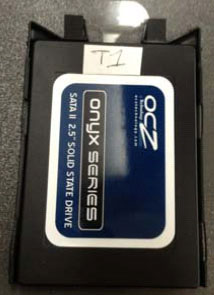
Getting Started Ask your Support Team Leader for the project specific hard drive. Hard Drives come preconfigured for each system. Make sure to label each respective drive accordingly.
|
||
|
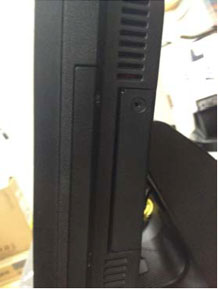
Step 1 Using a Phillips head screw driver, unscrew and remove the screw holding the side door closed on the terminal. This is where your Hard Drive will go.
|
||
|
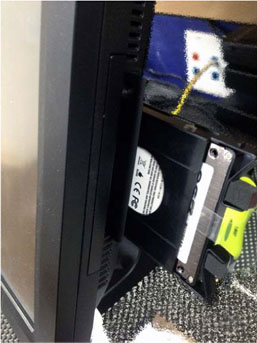
Step 2 Insert the hard drive with the white sticker facing you. The HDD will only work in one direction. Use the below picture for reference.
|
||
|
Step 3 Close the Hard Drive door and screw the Phillips screw to hold the Hard Drive door closed. |
||